
Views: 139 Author: Site Editor Publish Time: 2026-04-16 Origin: Site
You want your fiber laser marking machine to be safe. You also want it to last a long time. Before you begin, you should learn about the main dangers. Many people have trouble with machine problems, burns, or laser radiation. The table below shows common safety problems during setup:
Safety Incident Type | Description |
|---|---|
Machine Malfunctions | Laser misalignment, cooling, or electrical faults |
Laser Radiation Exposure | Eye and skin injuries from laser radiation |
Burns | Injuries from laser beams |
Fire Hazards | Overheating or flammable vapors |
Toxic Fume Inhalation | Harmful gases from marking some materials |
Noise Hazards | Loud noise from machine parts |
Electrical Hazards | High-voltage risks |
You can lower these dangers by following each safety step. Always check your user manual for more information. Stay alert in your workspace at all times.
Always wear safety gear like laser safety glasses and gloves. This helps stop injuries when you set up the machine.
Make sure your workspace is clean and has no mess. Keep the area open and let air move through to lower accident risks.
Use a checklist to look over the machine before you use it. Check that all wires are tight and the machine is grounded.
Set up the laser marking system so it works right. Change the settings for the material you are marking to get good results.
Take care of your machine often by cleaning the lenses. Check the cooling system to keep the machine working well.
You always need to wear the right personal protective equipment when using a fiber laser marking machine. Put on laser safety glasses that protect your eyes from the 1064nm wavelength. These glasses keep your eyes safe from dangerous laser light. Wear gloves so you do not burn your hands or touch hot parts. Closed-toe shoes and long sleeves help protect your skin. Never skip these safety steps, even if you are doing a quick job.
Get your workspace ready before you begin. Make sure the area is clean and has no clutter. Take away anything that can catch fire. The room should have good airflow. Your workspace must meet these basic rules:
Requirement | Specification |
|---|---|
Minimum Room Dimensions | 12 feet by 12 feet |
Ambient Temperature | 18-22 °C |
Environment | Dust-free, cool, well-grounded |
Power Supply | Uninterrupted |
A clean and safe workspace helps stop accidents and keeps the machine working well.
Check the machine before you turn it on. Use this checklist:
Set the power to at least 50% so the machine works well.
Make sure the area has good airflow.
Keep the workspace neat and tidy.
Check that the machine is grounded and the wires are connected right.
Make sure the materials you use work with the laser’s wavelength.
Look at the settings and lights on the laser marking system.
Do a test run to see if everything works.
These steps help you find problems early and keep things safe.
Look at all the wires before you use the machine. Make sure the machine is grounded. Only use the power supply that is recommended. Do not use extension cords or adapters that could cause problems. Turn off the power before you plug in or unplug any cables. These steps keep you safe from electrical dangers and protect the machine.
You need to know what to do if there is an emergency. If someone gets burned or hit by the laser, give first aid right away. Wash eyes with clean water and get medical help for eye injuries. Cool burns with water and cover them with clean bandages. If there is a fire, use the fire system or a fire extinguisher. Leave the room if the fire gets bigger or if you smell bad fumes. Always call for help if you need it. Training and acting fast help keep everyone safe.
Tip: Go over your emergency plan with your team before you start any marking job. This makes everyone safer.
Tip: Keeping your workspace clean helps you avoid mistakes and keeps your laser marking machine safe.
Connect the power supply to the laser marking machine. Make sure the machine is grounded. Only use the power supply that is recommended. Do not use extension cords or adapters. Turn off the power before plugging in or unplugging cables. This step keeps you safe from electrical dangers and protects the laser marking machine. Check the grounding wire to make sure it is tight. Good grounding makes your marking better and more accurate.
Connect all cables you need for installation. Attach the fiber optic cable, laser head cable, RF cable, galvo control cable, and computer parts. Connect any extra devices if you have them. Arrange cables so they do not get tangled. Make sure each cable fits tightly in its port. Good cable management makes maintenance easier and keeps the laser marking machine working well.
Install the EZCAD software for your laser marking machine. Put in the installation disk or download the software from the official website. Follow the steps on the screen. Pick the right driver for your laser marking machine. Finish the installation and restart your computer. Open EZCAD and check if it finds your laser marking machine. This software lets you control marking, engraving, and cutting jobs. You can set up different materials like metal, jewelry, and plastics.
Note: Always use the newest EZCAD version for better quality and accuracy.
Turn on the laser marking machine for the first time. Make sure all cables are connected. Switch on the power supply. Look for lights on the laser marking machine. Listen for strange sounds. If you see warning lights, turn off the machine and check everything. If the machine starts smoothly, your installation is correct. Now you can start marking and engraving.
Calibrate the laser marking system to get good accuracy. Open EZCAD and use the calibration tools. Move the marking head to focus the laser beam. Put a test piece of metal or jewelry under the marking head. Run a test marking job. Check if the mark is clear and sharp. If it is not clear, adjust the focus and try again. Calibration makes sure your laser marking machine gives high-quality marks every time.
Tip: Use calibration accuracy of ±0.01mm for best results on jewelry and metal.
Set up the cooling system for your fiber laser marking machine. JWLASER uses an air cooling system. You do not need extra cooling equipment. Make sure the air vents are not blocked. Keep the machine in a place with good airflow. The air cooling system lets the laser marking machine work for long hours. It helps with maintenance and stops overheating.
Air cooling system works without extra equipment.
Reliable performance during long marking and engraving jobs.
Keeps the laser marking machine safe and efficient.
Set marking parameters for different materials. Open EZCAD and set the power, speed, frequency, and pulse width. Pick settings for metal, jewelry, or plastics. For deep engraving or cutting, use more power and slow down the speed. For color marking on stainless steel or high-contrast marking on anodized aluminum, use MOPA settings. Save your settings for future jobs. Good configuration makes your marks better and more accurate.
User Report | Setup Time |
|---|---|
User 1 | 30 minutes |
User 2 | 20 minutes |
User 3 | 18 minutes |
Most people finish setting up the fiber laser marking machine in less than 30 minutes. You can start marking jewelry, metal, and other materials fast.
Sequence matters. Follow each step for safe installation and reliable performance.
Finish the fiber laser setup by checking all connections, calibrating the laser marking system, and setting marking parameters. Now you can use your laser marking machine for engraving, cutting, and marking jobs on jewelry, metal, and plastics. Regular maintenance keeps your laser marking machine working well and gives high quality and accuracy.
Setting up your JWLASER fiber laser marking machine should be simple, but sometimes you may face problems. You can solve most issues by following a few steps. This section will help you fix common problems and get your machine ready for marking and engraving.
You may notice that your laser marking machine does not turn on or the lights do not work. Start by checking the power cables. Make sure each cable is plugged in tightly. Use the correct voltage for your machine. If you see any loose wires, fix them before you try again. Always check the grounding wire. Good grounding keeps your machine safe and helps it work well.
Here is a table of common setup issues and what you should check:
Common Setup Issues | Description |
|---|---|
Power Supply Problems | Make sure all power cables are secure and the correct voltage is supplied. |
Incorrect Cable Connections | Check that all cables are installed properly and match the user manual. |
Poor Air Circulation | Give enough space for airflow and keep vents clear. |
Tip: If your machine still does not start, unplug it and wait for one minute. Plug it back in and try again.
You may have trouble installing the EZCAD software. If the program does not open or you see an error, check that you downloaded the correct version for your system. Restart your computer after installing the software. If the laser marking machine does not connect to the software, check the USB cable. Try a different USB port if needed. Always follow the steps in the user manual for software setup.
Note: Keep your software updated. New versions fix bugs and make engraving easier.
If your marks look blurry or not in the right place, you may need to calibrate the laser marking machine. Open the EZCAD software and use the calibration tools. Place a test piece under the marking head. Run a test engraving. If the mark is not clear, adjust the focus knob. Move the marking head until the mark looks sharp. Make sure the marking head is mounted tightly. A loose marking head can cause misalignment.
Check the calibration accuracy. JWLASER machines can reach ±0.01mm.
Use the test pattern in EZCAD to check alignment.
Adjust the focus for each new material.
Sometimes, the laser beam does not mark or engrave as expected. First, check if the lens is clean. Dust or fingerprints can block the beam. Clean the lens with a soft cloth. Make sure the marking parameters in EZCAD match your material. For deep engraving, increase the power and slow down the speed. For color marking, use the MOPA settings if your machine supports them. If the laser still does not work, check the emergency stop button. Make sure it is not pressed.
Callout: Always wear your laser safety glasses when checking the laser output.
JWLASER cabinet and enclosed systems have safety interlocks. If the door is open, the laser will not fire. Check that all doors and covers are closed. Look for warning lights on the control panel. If you see a fault, close all covers and restart the machine. If the problem continues, check the interlock switches for damage. Replace them if needed.
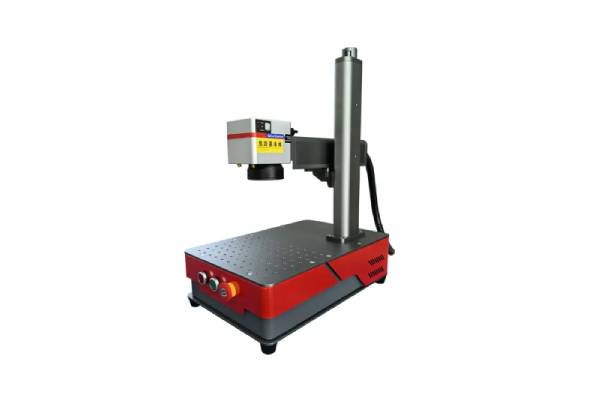
Some JWLASER models have a motorized lifting system for adjusting the marking head height. If the head does not move, check the power connection to the motor. Listen for any strange sounds. If the motor does not work, check the control buttons. Make sure nothing blocks the path of the marking head. If you still have trouble, turn off the machine and check the wiring to the motor.
Tip: Keep the lifting system clean and free of dust for smooth movement.
You can solve most problems by following these steps. If you need more help, check the user manual or contact JWLASER support. Good troubleshooting helps you keep your laser marking machine ready for every engraving job.
You stay safe and get good results by following each setup step for your JWLASER fiber laser marking machine. The table below explains why it is important to follow a step-by-step process:
Key Benefit | Description |
|---|---|
Safety | Helps stop accidents from happening. |
Precision | Makes your marks more accurate. |
Consistent Marking Quality | Gives you great results every time. |
Reliable Operation | Keeps the machine working well and stops long breaks. |
Always read your user manual to learn about your machine. Before you start, check all wires and settings again. If you need help, you can ask JWLASER support or find help online. Clean your machine, check it often, and make sure the cooling works. This keeps your machine working well. You can count on JWLASER to do many jobs with good quality.
You can mark metal, jewelry, and some plastics. The laser marking system works well on stainless steel, aluminum, brass, and titanium. It can engrave and cut many industrial materials.
Wear laser safety glasses and gloves. Keep your workspace clean and remove anything that can catch fire. Always follow the safety steps in the user manual. Check the power supply and grounding before you start.
Calibration helps you get the best accuracy and quality. It makes sure your marks are sharp and clear. Calibrate the laser marking machine system after installation and before each new job.
Check all cable connections and the power supply. Restart your computer and the laser engraving machine. Make sure you installed the correct laser marking software version. If you still have trouble, follow the troubleshooting steps in your manual.
Clean the lens and check the cooling system every week. Inspect cables and connections often. Regular maintenance keeps your fiber laser setup running smoothly and helps you keep high quality and accuracy in every job.

 English


